

Crop / Draw
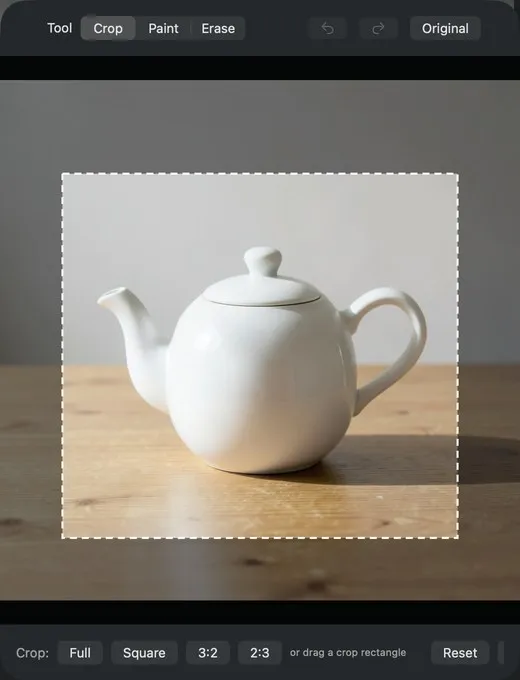
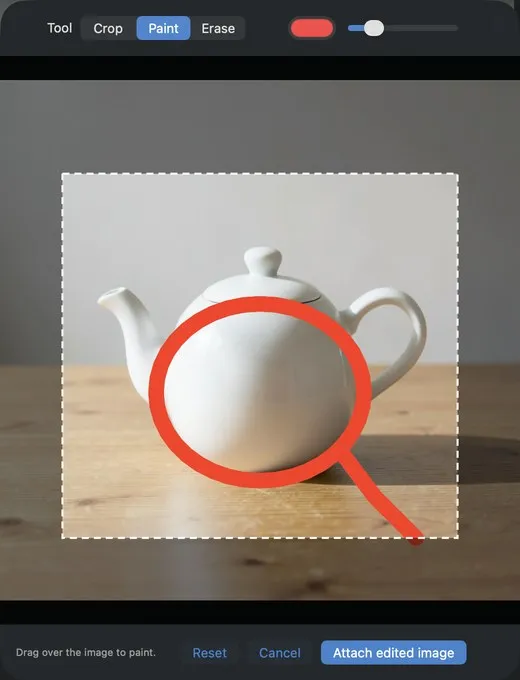
You can write in simple words how to change a result. You can also show your request on the image first. Open Crop / Draw below a result. Crop the image. Paint marks on it. Erase the marks that are not correct. Click Attach edited image. Then write what to do. The app does not change the original image.
| 1 · Crop | 2 · Paint a mark | 3 · Erase an incorrect mark |
|---|---|---|
 |
 |
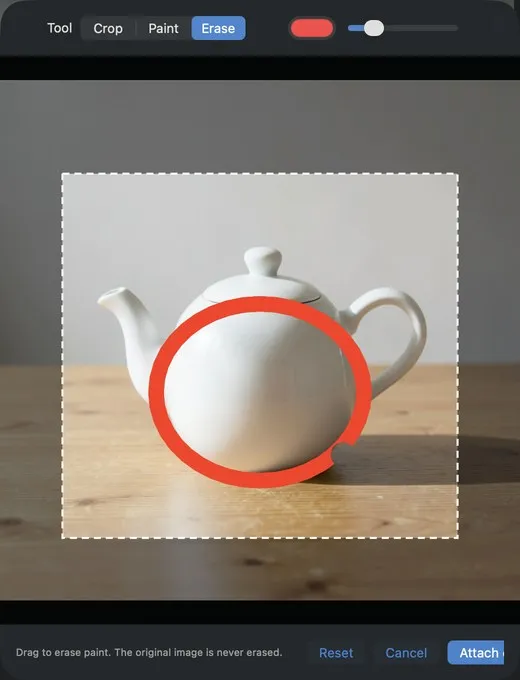 |
| The dark area is not in the prepared image. | The circle shows the area to change. The line onto the table is an error. | Erase removes only paint. The image below the paint does not change. |
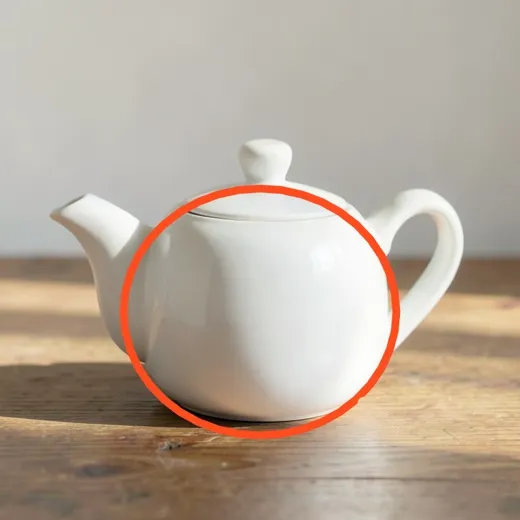
4 · Attach and ask. Attach edited image puts the prepared image in the message box. The agent gets the prepared image, a note that tells it the image is image 1 after Crop / Draw, and your words. The marks are part of the prepared image. Write “remove the marks” in your message, or the result can keep them. The prepared image is one of the 3 images that you can attach.

| Before (the prepared image 1) | After (image 2, “Edited from the prepared image 1”) |
|---|---|
 |
 |
The result has the size and the framing of the cropped area, not of the full image 1.